※Latest News: none.
PWA Installation and Setup Guide

Progressive Web Apps (PWAs) let a website be installed on a device like a native app. After installing Squares Battle, an app icon and shortcut will appear on your desktop or mobile home screen. You can tap or click the icon to open the game in a fullscreen, app-like window for a more immersive experience.
Most modern browsers that support installing PWAs include Chrome, Microsoft Edge, Safari (partial support on iOS / macOS), and Samsung Internet. Supported operating systems mainly include Android, Windows 10/11, some Linux desktop environments, and iOS / iPadOS. The exact button names and where the install icon appears can vary slightly between different platforms and browsers.
On desktop (Windows / macOS / Linux), open SquaresBattle.com in a browser that supports PWAs. After the site finishes loading, look for an Install button or a plus-shaped install icon near the address bar. Click it and then choose Install or Add app in the dialog. Once the installation is complete, an icon for Squares Battle will appear on your desktop, Start menu, or applications list so you can launch the game directly from there.


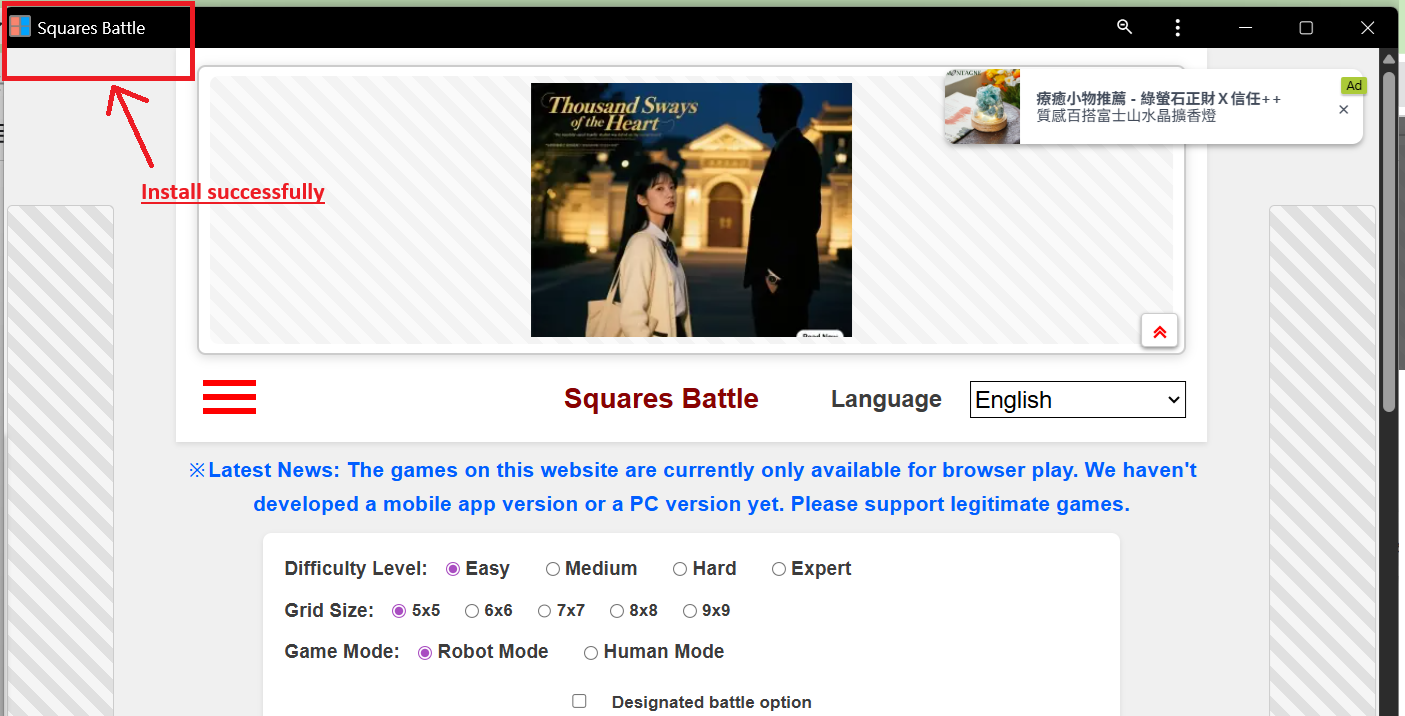

On desktop, PWA installation is mainly supported by Chrome and Microsoft Edge on Windows and Linux, and by Safari (with partial PWA support) on macOS. These browsers allow installing Squares Battle as a PWA on Windows 10/11, various Linux desktop environments, and macOS. The exact button names and where the install icon appears can vary slightly between different browsers and operating systems.
Note:PWA installation is usually not available in Incognito or Private browsing modes. Please use a normal (non-private) browser window if you want to install Squares Battle as a PWA.
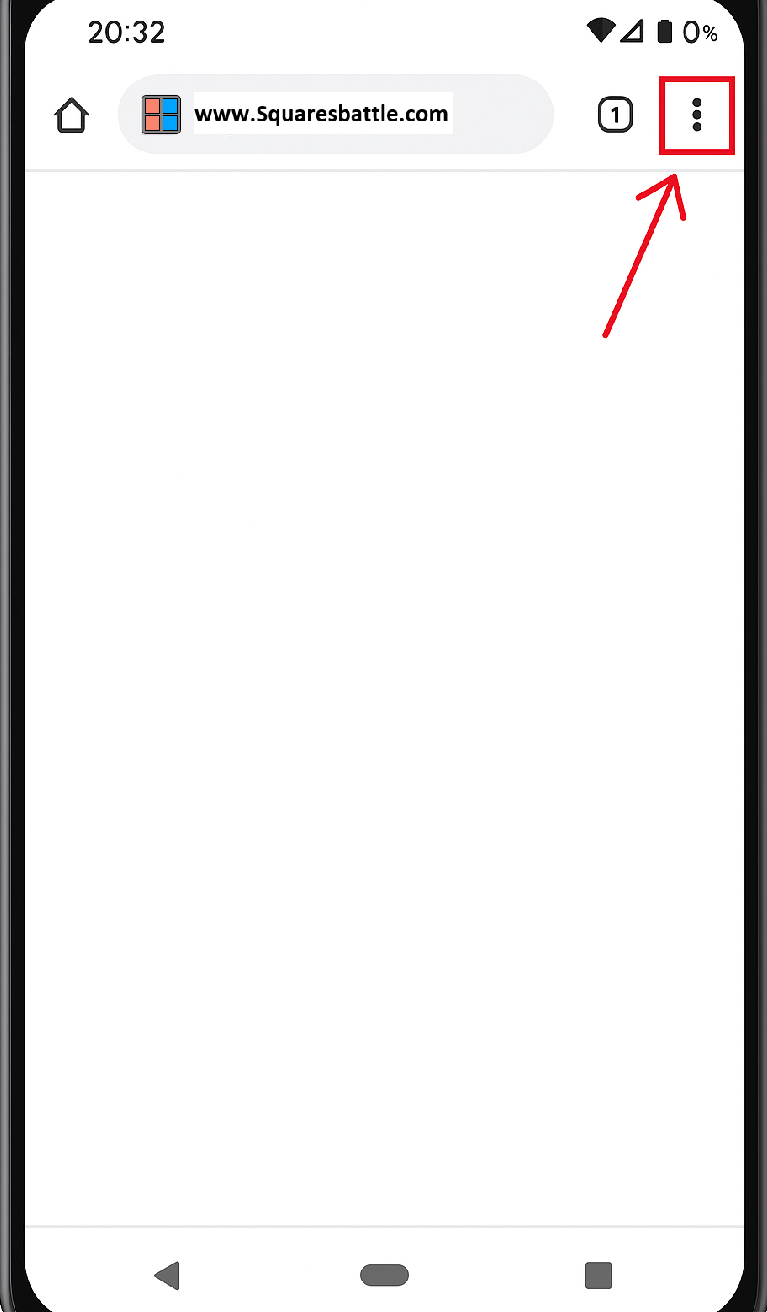
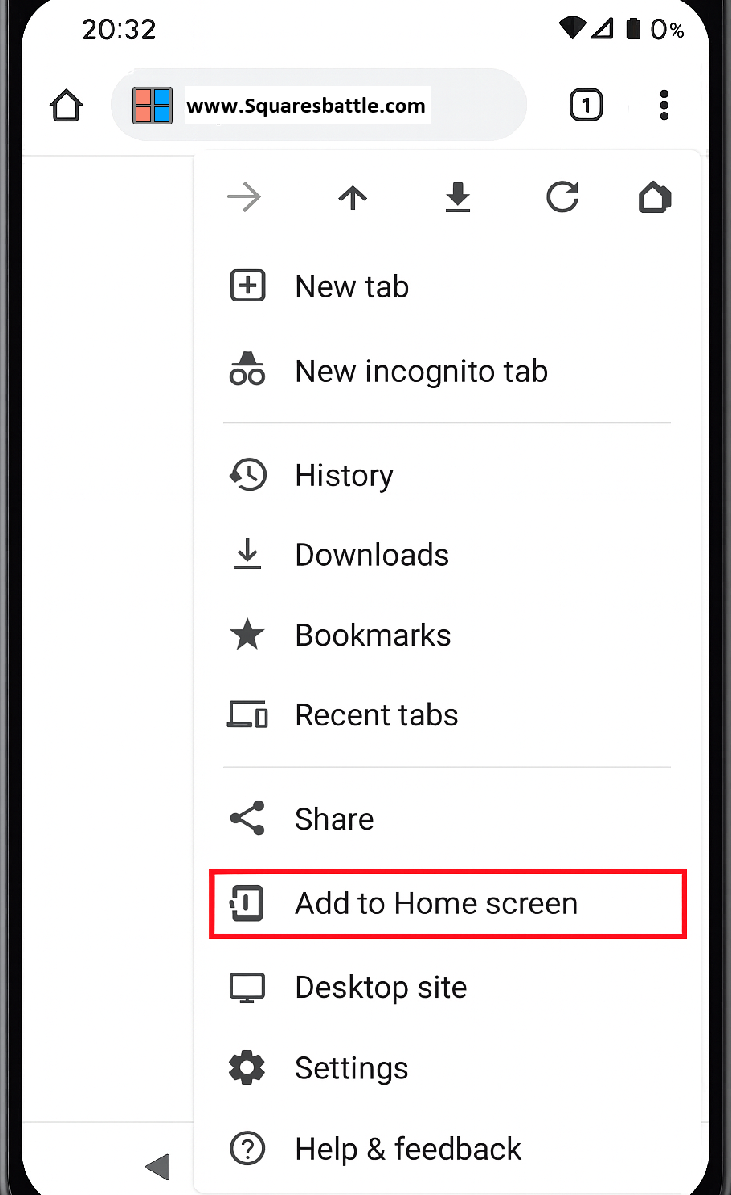
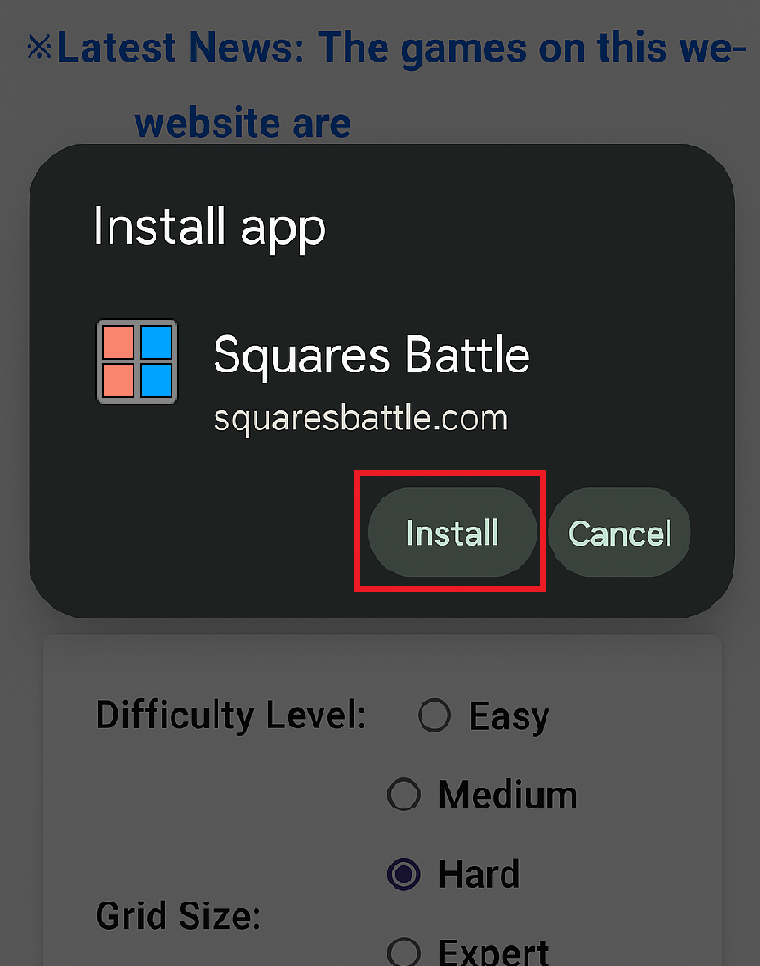
On mobile devices (such as smartphones or tablets), open SquaresBattle.com in a PWA-enabled browser. On Android, open Chrome and tap the menu button in the top-right corner, then choose Add to Home screen or Install app; after you confirm, a Squares Battle icon will be added to your home screen. On iOS / iPadOS, open the site in Safari, tap the Share button at the bottom, then select Add to Home Screen. After confirming the name, a PWA icon will appear on your home screen, and you can launch Squares Battle like a regular app.
--------------
Android devices
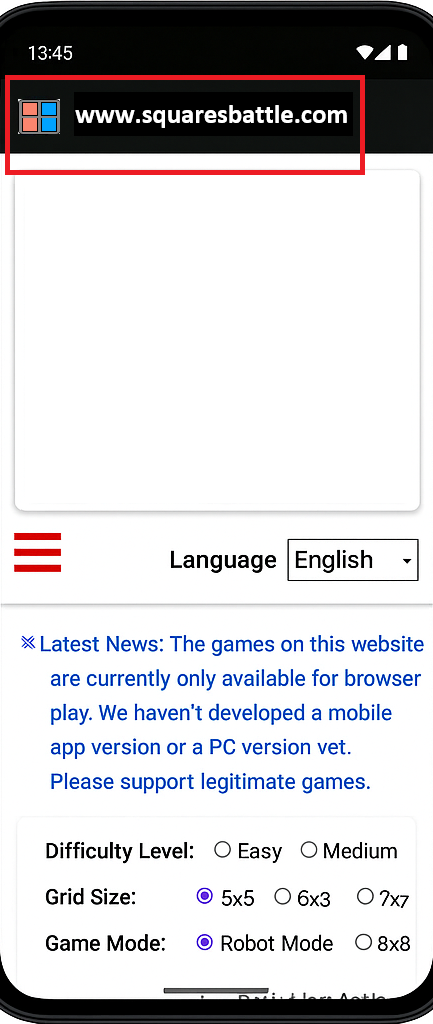
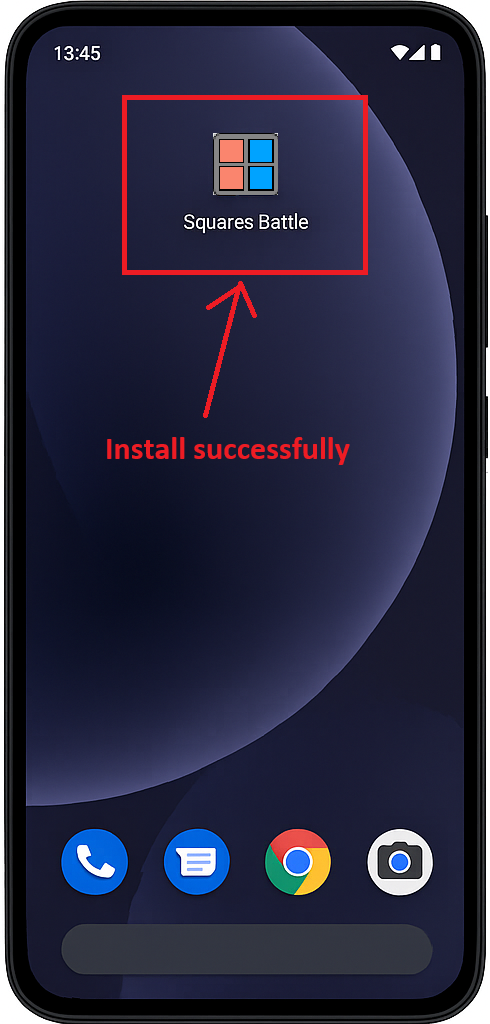
--------------
iOS devices
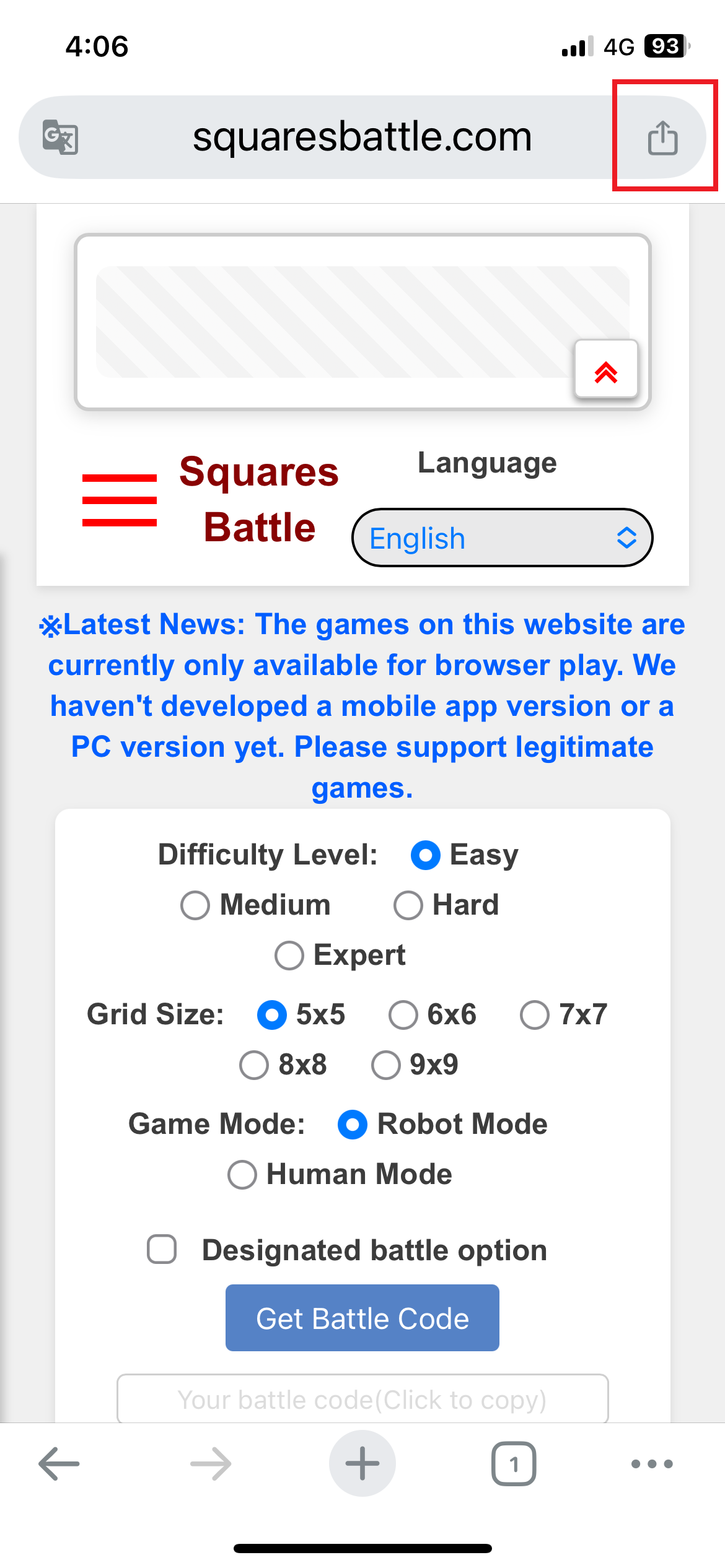
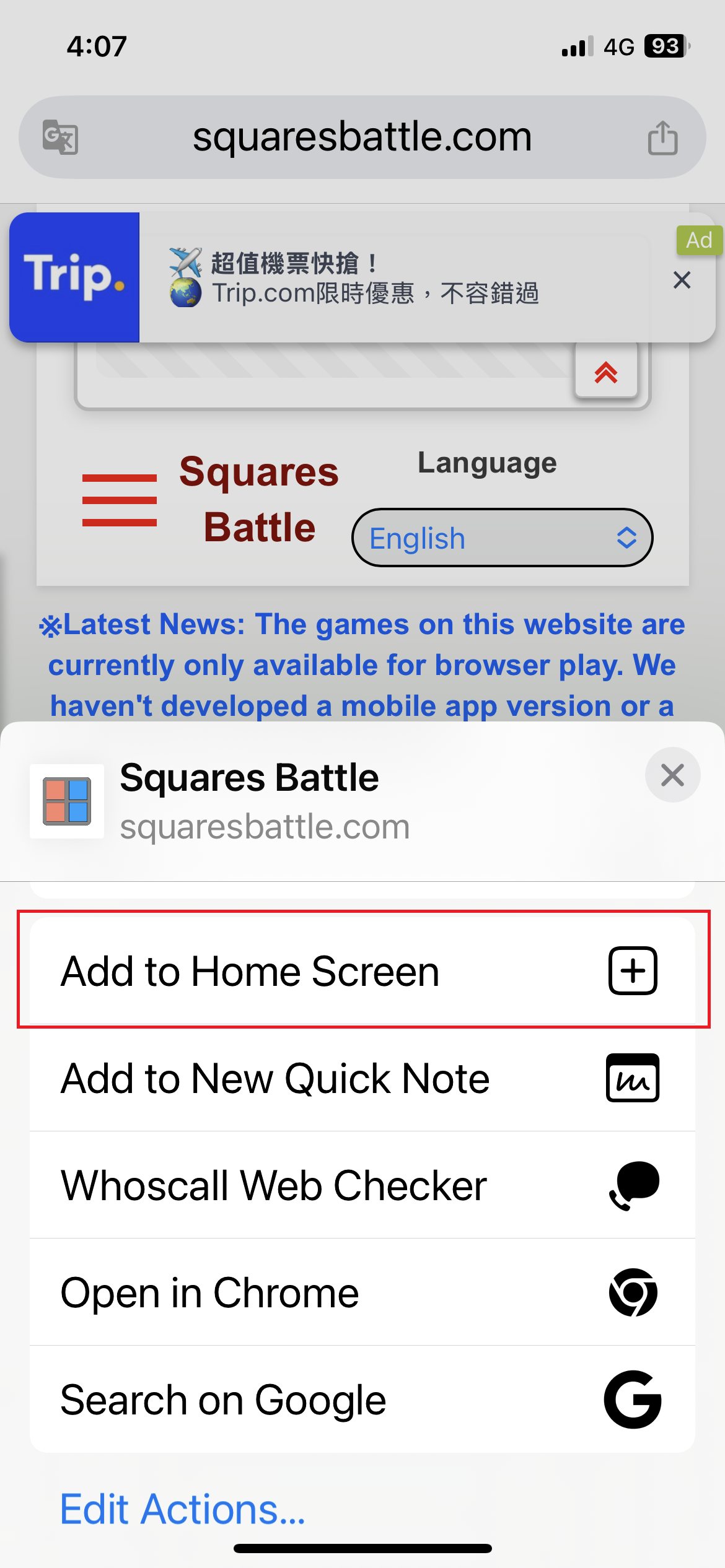
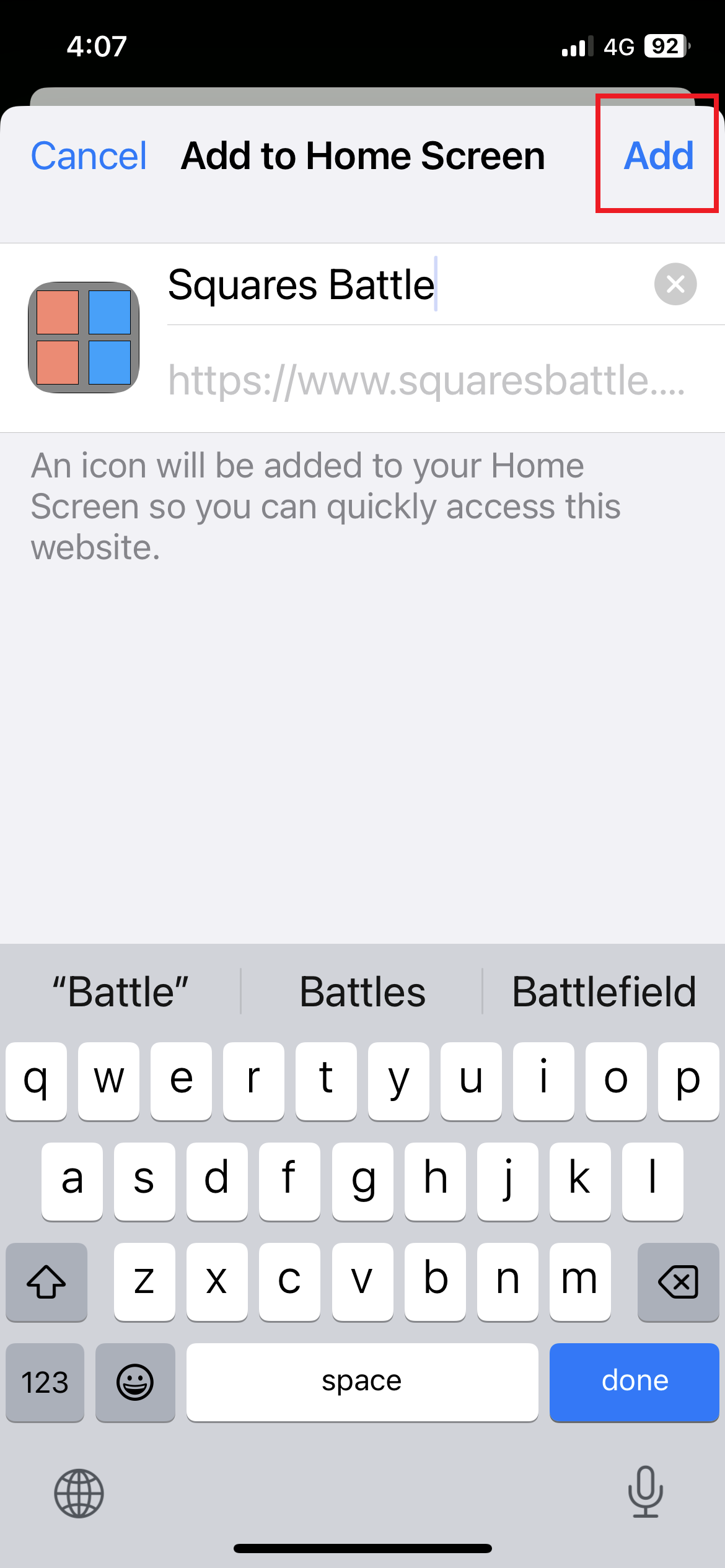
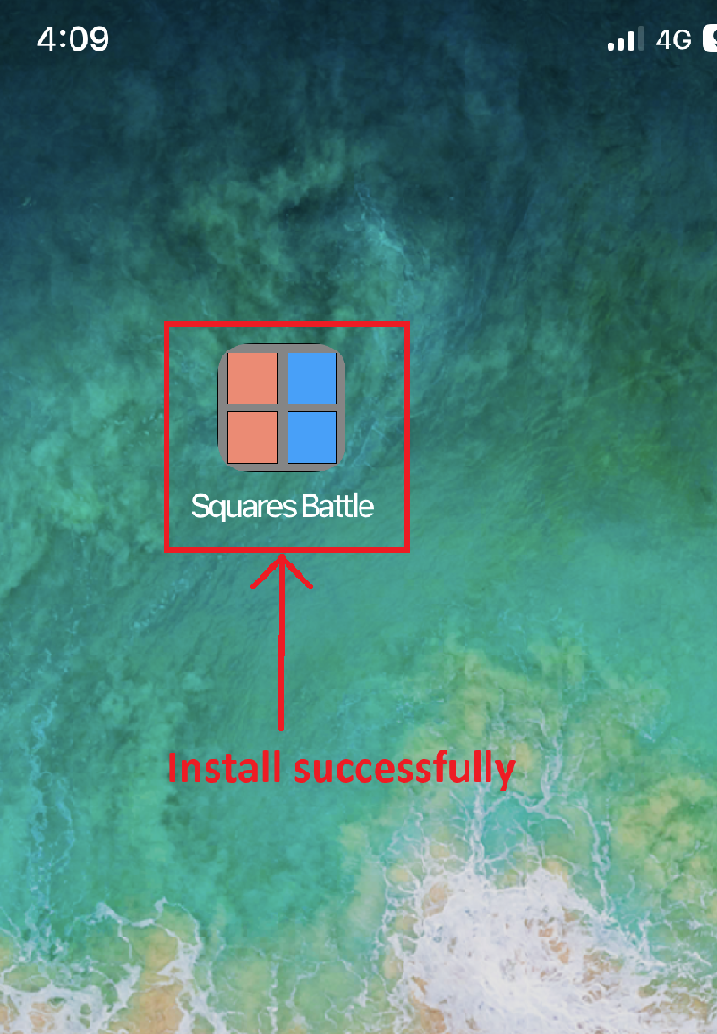
--------------
On mobile and portable devices, PWA installation is supported by browsers such as Chrome, Microsoft Edge, and Samsung Internet on Android, and Safari on iOS / iPadOS. The detailed behavior, button labels, and the position of the install or Add to Home Screen option can vary slightly between different platforms and browser versions.
Note:PWA installation is usually not available in Incognito or Private browsing modes. Please use a normal (non-private) browser window if you want to install Squares Battle as a PWA.
-----------
-----------
-----------
Other Website Links:
Game Website:
TextForgi.com
-----------